
VRR Settings Optimization: Smooth Gameplay Without Tearing
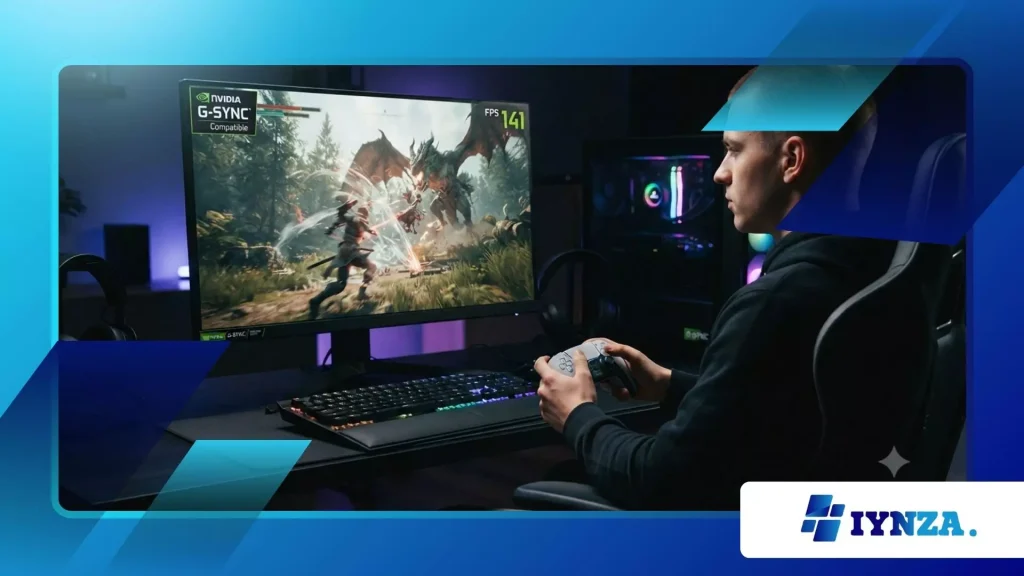
VRR Settings Optimization is the single most effective way to eliminate screen tearing and stutter without sacrificing performance in modern gaming.
Anúncios
Variable Refresh Rate technology has revolutionized how our monitors interact with GPUs, essentially creating a fluid conversation that adapts in real-time.
By dynamically matching the display’s refresh rate to the frames rendered by the graphics card, you gain a perfectly synced visual experience.
This seamless synchronization prevents the jarring horizontal “tears” that occur when a GPU renders frames faster or slower than the monitor can display them.
Achieving the perfect balance requires more than just toggling a switch in the Windows display settings or your GPU control panel.
It demands a nuanced understanding of frame rate caps, V-Sync interaction, and display-specific firmware limitations found in modern gaming hardware.
As we navigate the high-fidelity landscape of 2026, where 4K and high-refresh-rate gaming are standard, mastering these settings ensures you actually utilize the expensive hardware you purchased.
Are you tired of your screen feeling disjointed during intense competitive firefights?
- The fundamental mechanics behind variable refresh rate synchronization.
- Step-by-step guide to configuring your GPU and display for optimal synergy.
- Resolving common compatibility issues between G-Sync, FreeSync, and hardware.
- Determining the ideal frame rate caps for competitive versus immersive gaming.
What Is the Technical Foundation of Variable Refresh Rate?
At its core, variable refresh rate technology acts as a bridge between the erratic output of your graphics card and the rigid scanning cycle of your monitor.
Traditionally, displays refreshed at fixed intervals, leading to misalignment when the GPU finished a frame outside that narrow window.
Variable systems force the monitor to wait for the GPU’s signal, effectively making the display subservient to the rendering pace.
This shift fundamentally removes the need for brute-force synchronization that historically introduced significant input lag.
Think of it like a professional orchestra: without this technology, the lead violin (the GPU) and the rest of the ensemble (the monitor) might play at slightly different speeds, resulting in discord.
With this synchronization enabled, the violin directs the tempo, ensuring the entire musical piece sounds harmonious and unified.
This harmony allows for fluid movement in fast-paced titles, where every millisecond of visual consistency impacts your ability to track moving targets accurately.
How Does This Tech Reduce Input Latency?
Unlike legacy V-Sync, which forces the GPU to buffer frames until the monitor is ready, this dynamic approach keeps the rendering pipeline clear.
Frames reach your eyes the exact moment they are finished, drastically reducing the delay between your mouse click and the action on screen.
This responsiveness is vital for professional esports, where reaction times are measured in single-digit milliseconds.
Why Does Hardware Compatibility Vary?
Not every monitor supports the full range of variable synchronization, as manufacturers implement different levels of certification and firmware.
High-end displays offer wide ranges, often from 30Hz to 240Hz, while budget panels might only support sync between 48Hz and 144Hz.
Understanding your monitor’s specific window is essential for accurate VRR Settings Optimization to prevent flickering or sudden frame drops.
Leia também: Como os jogos independentes estão preservando gêneros perdidos, como jogos de digitação e RPGs de texto.
Can You Use It Without High-End Gear?
Yes, modern integration has made this technology incredibly accessible, with both consoles and entry-level PC hardware now supporting standardized protocols.
Even on modest displays, enabling these features can make a game running at 60 FPS feel significantly smoother than the same game on a fixed-rate screen. It democratizes premium visual quality for every type of gamer.
How to Configure Your System for Maximum Fluidity
Optimizing your display requires a systematic approach, beginning with the hardware connection, as this technology demands specific cables for full bandwidth.
Always use a high-quality DisplayPort 2.1 or HDMI 2.1 cable to ensure the monitor can handle the rapid data transfer required for high resolutions.
Once connected, confirm that “G-Sync Compatible” or “FreeSync” is manually enabled in your GPU’s dedicated control software before touching internal game settings.
Next, you must address the relationship between V-Sync and variable refresh rates, a topic often misunderstood by many casual players.
Contrary to popular belief, you should keep V-Sync turned “On” within your Nvidia or AMD control panel while keeping it “Off” in your in-game menus.
This specific configuration acts as a safety net, capping frames just below your monitor’s maximum refresh rate to prevent the system from exceeding the synchronization window. This small tweak creates a perfectly stable, tear-free environment.
Leia mais: Solução para perda de pacotes em jogos: Estabilize partidas online rapidamente
Why Is In-Game V-Sync Often Counter-Productive?
In-game V-Sync frequently introduces triple-buffering logic that adds unnecessary latency, negating the benefits of your variable refresh setup.
By moving that control to the GPU driver level, you benefit from lower-level optimization that is more efficient and reliable.
This separation of duties is a cornerstone of effective visual configuration for any serious player.
How to Find Your Ideal Frame Rate Cap?
To keep the system within its optimal synchronization window, calculate a cap roughly 3 to 5 FPS below your monitor’s maximum refresh rate.
If you have a 144Hz screen, setting a cap to 140 FPS ensures you never hit the ceiling where variable sync would disengage.
This stability keeps your frame timing perfectly consistent, which is more important than raw frame numbers.
Are There Hidden Settings That Cause Stutter?
Some games have built-in “dynamic resolution scaling” or “motion blur” settings that interfere with frame pacing.
During VRR Settings Optimization, it is best to disable these post-processing effects to see the raw frame output clearly.
Clean visual processing ensures that your monitor receives a consistent stream of data, allowing the sync technology to operate without unexpected interference.
Troubleshooting Common Visual Glitches and Issues
Despite its elegance, the interaction between GPU and monitor can sometimes result in “flickering,” especially in loading screens or menus.
This usually occurs because the frame rate drops below the monitor’s minimum threshold, causing the hardware to lose its sync lock.
To fix this, use your GPU software to enforce a frame rate floor or adjust your game settings to keep minimums above 50 FPS.
Stability is always better than chasing high maximums at the cost of wild fluctuations.
Another common issue involves “black screen” flashes when switching between full-screen and windowed modes.
This happens because the display has to renegotiate the sync protocol every time the application window changes state.
To minimize this, use “Borderless Fullscreen” mode where possible, as it keeps the synchronization layer active even if you alt-tab to another application.
These minor adjustments create a much more stable and reliable visual environment for your daily gaming sessions.
What Causes Micro-Stutter Even With Sync Enabled?
Micro-stutter is often caused by background applications, such as browser hardware acceleration or cloud syncing, fighting for GPU cycles.
Ensure you close unnecessary background processes to give your graphics card a clear, unobstructed path to render frames.
A clean system environment is the best partner for any sophisticated display technology.
Can Cable Quality Affect Sync Stability?
Absolutely; using an underspecified or damaged cable can result in intermittent packet loss, which manifests as screen tearing despite your settings being correct.
Always verify that your cable supports the bandwidth required for your monitor’s resolution and frequency. It is a common, overlooked factor that ruins many high-end setups.
Does Multi-Monitor Setup Create Problems?
Using different types of monitors with varying sync ranges can confuse your GPU’s driver, sometimes forcing the system to default to the lowest common denominator.
For the best experience, try to keep your primary gaming monitor isolated from the refresh rates of secondary panels. This prevents the driver from struggling to manage conflicting signal requests.
Data Reference: Sync Thresholds and Performance
This table illustrates the relationship between various monitor refresh capabilities and the recommended frame rate targets for optimal visual stability.
| Taxa de atualização do monitor | Sync Range (Typical) | Recommended FPS Cap | Resulting Visual Fidelity |
| 60Hz (Standard) | 48Hz – 60Hz | 57 FPS | Smooth for casual titles |
| 144Hz (Gaming) | 48Hz – 144Hz | 140 FPS | Excellent for competitive play |
| 240Hz (Pro) | 48Hz – 240Hz | 236 FPS | Near-perfect motion clarity |
| 360Hz (Ultra) | 60Hz – 360Hz | 355 FPS | Unrivaled competitive edge |
Conclusão
Dominando VRR Settings Optimization is the ultimate upgrade for any gamer seeking to unify their hardware’s output into a cohesive, fluid experience.
By properly managing frame caps, driver-level synchronization, and signal path integrity, you effectively eliminate the friction between hardware and software.
These adjustments represent the difference between a jarring, stuttering display and a crystal-clear, immersive window into your game world.
As gaming hardware evolves, your ability to fine-tune these digital interactions remains your strongest tool for maintaining a competitive edge and visual perfection.
Implementing these changes will yield immediate improvements in how your favorite titles feel to play.
Don’t let your high-end hardware go to waste take control of your settings today and share your results or hardware configurations in the comments below!
Perguntas frequentes
Does enabling sync add input lag?
No, the primary advantage of modern variable refresh technology is that it operates with significantly lower latency than traditional V-Sync.
By allowing the GPU to send frames as soon as they are ready, you actually experience a more responsive connection to your in-game actions.
Should I keep V-Sync on or off in games?
For the best results with VRR Settings Optimization, you should leave V-Sync “Off” inside the game’s internal menu.
Instead, toggle V-Sync “On” within your Nvidia or AMD control panel to allow the GPU driver to handle the frame pacing, which prevents the monitor from ever hitting a “tearing” state.
Why do I still see tearing with the feature enabled?
If you still see tearing, it is likely because your frame rate is exceeding the maximum refresh rate of your monitor, effectively causing the sync protocol to disengage.
Applying a frame rate cap a few FPS below your monitor’s maximum refresh rate is the standard, reliable solution to keep the feature active.
Is this feature supported on consoles?
Yes, modern consoles like the Xbox Series and PlayStation 5 offer robust support for variable refresh rate technology.
Ensuring your console settings and your TV’s “Game Mode” are correctly configured will allow you to enjoy tear-free gaming on those platforms as well.
