
Blurry Graphics in Modern Warfare 4: Fix Issues Fast on PC
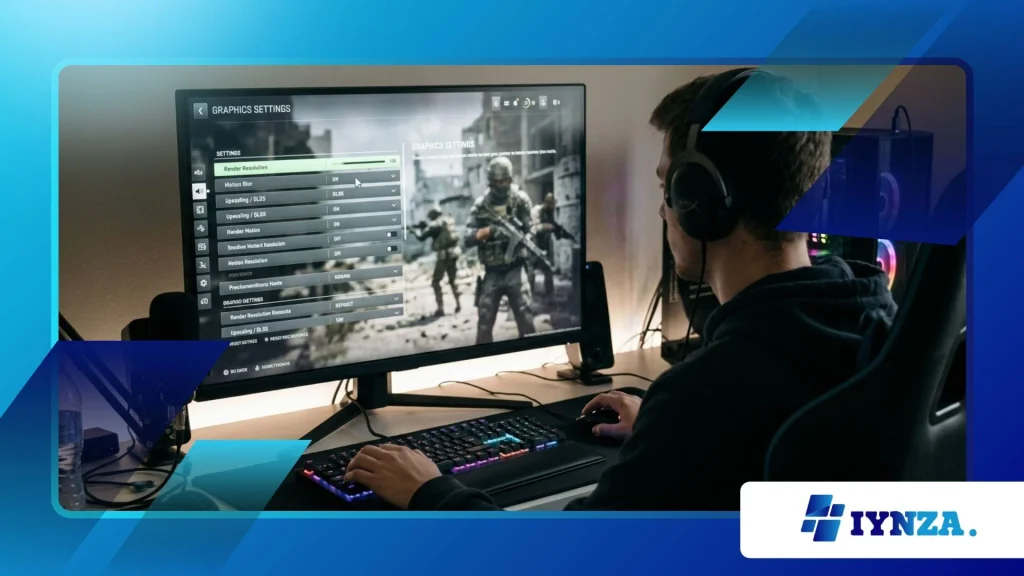
Blurry Graphics in Modern Warfare 4 can completely ruin your competitive edge, turning what should be a crisp tactical firefight into an exercise in frustration.
When your targets blur into the background mud, finding reliable fixes quickly becomes essential for survival in modern multiplayer arenas.
Modern gaming rigs pack immense horsepower, yet peculiar software conflicts, suboptimal upscaling settings, and misconfigured rendering resolutions frequently conspire to sabotage visual clarity.
Professional players know that hardware alone cannot save a poorly optimized configuration menu, making proper setting adjustments the ultimate equalizer.
This comprehensive guide walks you through exact diagnostics, advanced rendering tweaks, and proven troubleshooting steps to restore razor-sharp fidelity to your display immediately.
- Quick Diagnostic Overview: Identifying the root cause of visual degradation
- Core Upscaling Fixes: Toggling DLSS, FSR, and FidelityFX CAS effectively
- Advanced Rendering Adjustments: Managing VRAM usage, texture resolution, and film grain
- Hardware & Driver Optimization: Updating GPU software and clearing shader caches
What Causes Blurry Graphics in Modern Warfare 4?
Why Does Upscaling Blur Fast-Motion Footage?
Modern rendering engines rely heavily on temporal upscaling algorithms to maintain high frame rates during chaotic combat sequences.
When these algorithms interpolate pixel data across consecutive frames without sufficient motion vector feedback, ghosting and severe smearing occur.
Blurry Graphics in Modern Warfare 4 often stem directly from aggressive temporal anti-aliasing methods attempting to mask jagged geometric edges.
Gamers frequently notice this artifacting most prominently around fast-moving weapon barrels and sprinting operator models.
Disabling inferior upscaling modes instantly forces the engine to render native pixels, removing the artificial haze clouding your field of vision.
++ Steam Controller Not Working? Fix Input and Mapping Conflicts
How Do Resolution Scaling and Render Resolution Interact?
Rendering resolution determines the actual pixel grid processed by your graphics card before your monitor stretches the image to fit your screen.
If your render resolution drops below one hundred percent, the game engine automatically stretches lower-density imagery, introducing widespread pixelation and blur.
Many players accidentally lower this slider while tweaking performance settings, sacrificing vital long-range visibility for marginal frame rate gains.
Ensuring your render scale stays locked at native monitor specifications prevents the engine from muddying distant textures and environmental details.
Maintaining this precise balance guarantees that every sniper scope and foliage asset remains sharp.
| Resolution Setting | Impact on Clarity | Performance Trade-off | Recommended Value |
| Native 100% | Absolute maximum sharpness | Moderate frame rate cost | 100% (Locked) |
| DLSS Quality | Minimal artifacting, crisp edges | Significant performance boost | Enabled for 4K/14K setups |
| FSR Balanced | Noticeable edge shimmering | High frame rate boost | Use only on budget GPUs |
| Dynamic Resolution | Unstable clarity fluctuations | Variable frame rate control | Disabled entirely |
What Role Does Film Grain Play in Visual Softness?
Film grain and depth of field are cinematic visual filters designed to mimic vintage movie cameras rather than crisp digital displays.
In fast-paced tactical shooters, these filters intentionally scatter noise and blur peripheral vision to create dramatic atmospheric immersion.
Unfortunately, this cinematic blur obscures enemy silhouettes hiding in dimly lit rooms or across expansive outdoor maps.
Turning down film grain to zero strips away unnecessary visual noise, exposing clean geometric lines and vibrant textures.
Eliminating these artificial post-processing effects transforms murky engagements into clear visual encounters where reaction time dictates victory.
Also read: G-Sync vs FreeSync Setup: Which One Improves Performance
How Does Texture Resolution Affect Global Clarity?
Texture resolution settings dictate the fidelity of surface assets like concrete walls, weapon paint jobs, and soldier uniforms across every match.
When VRAM limits are exceeded, the game engine automatically compresses high-resolution assets into low-fidelity placeholders to prevent stuttering and crashes.
This aggressive compression creates an oily, blurred look across the entire environment, making long-range spotting nearly impossible.
Allocating adequate texture budgets within the graphics menu ensures high-frequency asset streaming functions smoothly without unexpected visual downgrades.
Upgrading your graphics card VRAM capacity or adjusting texture quality settings permanently resolves this muddy background problem.
Read more: Controller Calibration Fix: Solve Drift and Input Errors
How to Fix Blurry Graphics in Modern Warfare 4 Quickly?
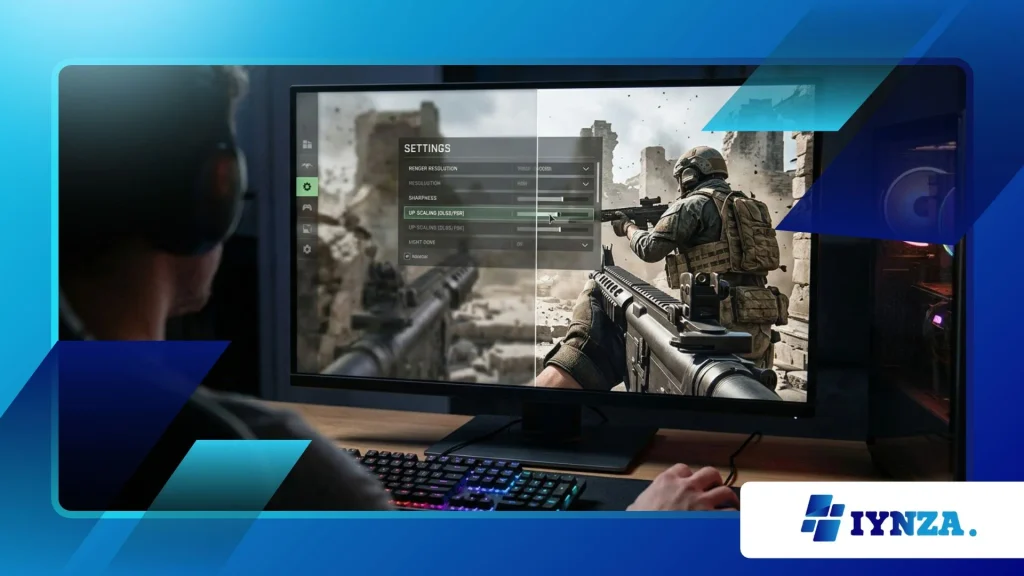
Why Should You Adjust Temporal Anti-Aliasing Settings?
Temporal anti-aliasing smooths jagged lines by blending frames together, but aggressive implementations destroy fine texture details across the map.
Replacing standard temporal filters with sharp sharpening techniques like FidelityFX CAS restores lost edge definition without sacrificing frame stability.
Adjusting the sharpening slider between fifty and eighty percent brings out intricate details on distant enemy uniforms and weapon attachments.
Testing these adjustments in a private match allows you to dial in optimal clarity before entering high-stakes competitive lobbies.
How Can VRAM Allocation Prevent Texture Smearing?
Virtual memory management dictates how efficiently your system loads heavy graphical assets into your graphics card dedicated memory pool.
Exceeding your hardware limits forces the engine to stream assets dynamically, causing severe pop-in and prolonged texture blurring during intense firefights.
Lowering particle quality and shadow map resolution frees up critical VRAM headroom for primary weapon and environment textures.
Monitoring your hardware performance metrics via overlay software ensures memory allocation remains safely below your GPU hardware threshold.
What Steps Fix Shader Compilation Stutters and Haze?
Corrupted shader caches frequently cause visual artifacts, stuttering, and persistent asset blurring upon launching into fresh multiplayer matches.
Forcing your game client to restart shader compilation from the main menu clears out corrupted temporary files causing rendering anomalies.
Allowing the pre-allocation process to reach one hundred percent before joining a match guarantees smooth texture streaming throughout gameplay.
This foundational maintenance step cures mysterious graphical glitches that defy standard in-game setting modifications.
How Do Monitor Refresh Rates and Scaling Options Affect Clarity?
Incorrect desktop scaling or mismatched monitor refresh rates can force your display to interpolate frames improperly, introducing native blur.
Verifying that your operating system scaling is locked at one hundred percent prevents windows from distorting the game rendering output.
Furthermore, enabling hardware-accelerated GPU scheduling ensures your operating system prioritizes game rendering workloads over background applications.
Combining correct operating system configurations with optimal in-game settings yields the crispest visual presentation possible.
Why Do Advanced Settings Matter for Competitive Play?
How Does Ambient Occlusion Impact Visual Depth?
Ambient occlusion calculates how ambient light realistically contacts complex geometry, creating natural shadows in corners and crevices.
High settings add incredible depth, but poorly optimized implementations introduce dark halos and smudging around fast-moving player models.
Lowering ambient occlusion to normal or low removes heavy shadow blurring that obscures enemies hiding in shadowy corridors.
Striking the right balance between visual realism and competitive clarity gives you an undeniable edge in dark map environments.
Why Is Motion Blur the Ultimate Enemy of Accuracy?
Camera motion blur and weapon motion blur intentionally smear your field of view whenever you turn quickly or sprint across terrain.
While cinematic, this intentional degradation completely blinds you to sudden enemy movements occurring in your peripheral vision.
Disabling both motion blur sliders instantly sharpens your entire screen during high-speed mouse flicks and aggressive entry paths.
Eliminating this artificial visual delay ensures your eyes track moving targets with absolute precision and zero obstruction.
How Do Post-Processing Filters Alter Color Vibrancy?
Post-processing filters dictate the overall color grading, bloom intensity, and lighting glare applied across every map environment.
Excessive bloom and lens flare can blind you when looking toward open windows or bright skyboxes during outdoor firefights.
Utilizing clean color customization options allows you to neutralize excessive haze while boosting contrast on enemy player outlines.
Fine-tuning these advanced parameters transforms a washed-out, blurry battlefield into a vibrant, high-contrast arena.
What Makes Hardware Upgrades Necessary for Ultimate Fidelity?
Older graphics hardware struggles to process modern rendering pipelines without leaning heavily on aggressive upscaling and compressed asset streaming.
When your GPU architecture lacks dedicated hardware acceleration for modern ray tracing and upscaling, visual compromises become mandatory.
Investing in modern graphics hardware with ample VRAM and advanced tensor cores eliminates the need for blurry resolution scaling entirely.
True native clarity rewards players who match their hardware capabilities with the demanding visual standards of modern gaming.
Final Performance Thoughts
Achieving absolute visual clarity in competitive shooters requires a methodical approach to balancing modern rendering technology with your specific hardware limitations.
By systematically eliminating artificial post-processing filters, locking your render resolution, and managing VRAM allocations effectively, you banish visual blur for good.
Competitive success relies heavily on spotting targets fractions of a second before opponents, making every optimization step outlined here truly invaluable.
Take control of your display settings today, test your new configuration in custom lobbies, and enjoy a pristine gaming experience.
Share your personal optimization discoveries or ask questions in the comments below to help fellow players conquer visual lag!
Frequently Asked Questions
What is the primary cause of blurry graphics in modern multiplayer shooters?
Aggressive temporal upscaling techniques, low render scale percentages, and cinematic post-processing filters like film grain and motion blur are the primary culprits behind visual softness.
How does changing the render scale improve visual sharpness instantly?
Locking your render scale at one hundred percent ensures the game engine processes native pixel density without stretching lower-resolution images across your monitor display.
Why should motion blur always be disabled in competitive matches?
Motion blur intentionally smears your screen during movement and camera rotations, obstructing your peripheral vision and hiding fast-moving enemy players from sight.
Does clearing the shader cache resolve unexpected texture smearing?
Yes, restarting shader compilation clears out corrupted temporary cache files that frequently trigger rendering anomalies, stutters, and persistent asset blurring upon launching matches.
How can I maintain high frame rates while maximizing visual clarity?
Utilizing quality-focused upscaling like DLSS alongside customized sharpening filters allows you to achieve a crisp visual presentation without sacrificing vital competitive frame rates.
