
Steam Controller Not Working? Fix Input and Mapping Conflicts
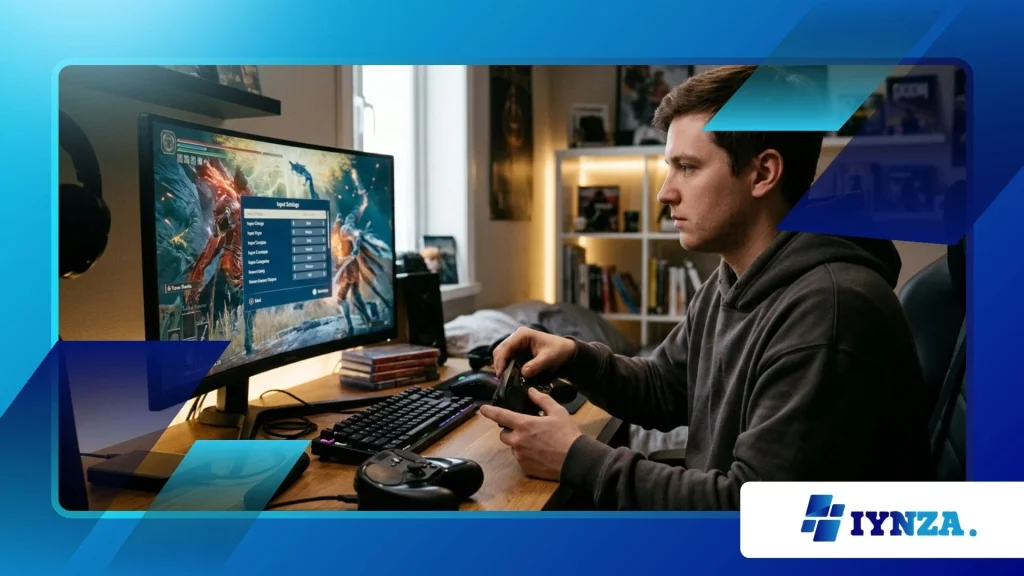
Steam Controller Not Working: troubleshooting input issues requires a comprehensive understanding of hardware configurations, software layers, and mapping conflicts that often disrupt seamless gaming sessions on modern PC platforms.
Modern digital storefronts and game launchers handle countless inputs daily, yet legacy controllers or customized bindings frequently trigger frustrating disconnects, unrecognized commands, or total unresponsiveness during critical gameplay moments.
Navigating these technical hurdles effectively transforms an unplayable peripheral into a precision instrument, ensuring that your favorite titles respond instantly to every trigger pull, analog stick tilt, and touchpad gesture without unwanted stuttering or profile corruption.
In this guide, we will explore the core architecture of input management, examine how Steam Input interacts with operating system drivers, look at a comparative table of diagnostic approaches, break down specific mapping conflicts, and answer frequent questions to restore absolute control over your digital library.
Quick Navigation Overview
- Understanding Steam Input Architecture and Driver Conflicts
- Why Mapping Overlaps Break Game Interactivity
- Step-by-Step Diagnostic Framework and Informative Data Table
- Restoring Peripheral Functionality and Community Solutions
- Frequently Asked Questions Regarding Controller Troubleshooting
Why Is My Steam Controller Not Working Properly?
What Causes Sudden Input Failures?
Hardware communication breakdowns typically occur when background applications hijack virtual driver layers or when outdated firmware prevents proper USB handshakes with the host machine.
Operating system updates frequently overwrite critical peripheral hooks, leaving users stranded with unresponsive devices right when they launch a newly downloaded title from their library.
Identifying these root causes demands a methodical review of active background processes, conflicting overlay software like Discord or GeForce Experience, and the core client settings governing device enumeration.
How Does Steam Input Intercept Signals?
Steam Input acts as a universal translation layer that intercepts raw hardware signals and maps them to virtual Xbox, PlayStation, or keyboard/mouse inputs depending on game requirements.
When this translation pipeline encounters corrupted configuration caches or conflicting peripheral hooks from third-party tools like DS4Windows or JoyToKey, the entire mapping stack collapses into an unresponsive state.
Disabling redundant overlay hooks and clearing corrupted configuration caches re-establishes clean communication channels between your physical device and the target software environment.
++ Modern Warfare 4 Crashing on PC: Fix Launch Errors and Freezes
What Are the Main Mapping Conflicts and How Do They Occur?
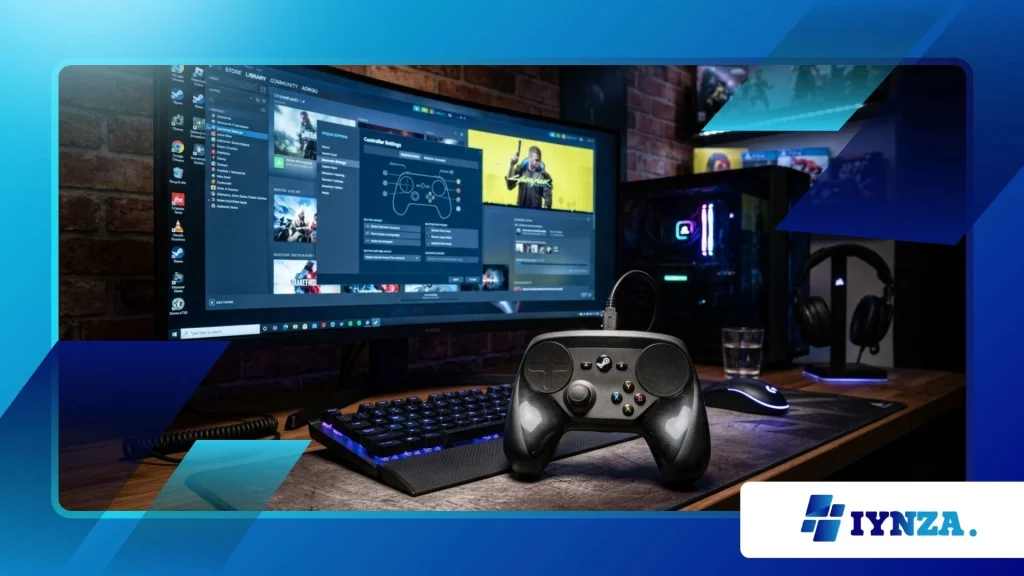
How Do Overlay Conflicts Disrupt Mappings?
Third-party software overlays often inject hooks directly into the graphics pipeline and input queue, unintentionally stealing command focus away from the primary gaming client.
When an overlay attempts to read controller inputs simultaneously with Steam, a race condition occurs, causing erratic camera movements, frozen menus, or complete input disregard in titles that rely heavily on custom configurations.
Minimizing background capture software and running the primary client with administrator privileges mitigates these interference patterns significantly.
Also read: G-Sync vs FreeSync Setup: Which One Improves Performance
Why Do Custom Community Layouts Fail?
Community-created bindings sometimes reference legacy API calls or deprecated button identifiers that modern game updates no longer recognize or support natively.
Applying an outdated template to a freshly patched title creates severe mapping conflicts, locking out triggers and touchpads while leaving simple directional pads functioning erratically.
Reverting to official default templates or building a clean custom profile from scratch resolves these synchronization discrepancies permanently.
Read more: Controller Calibration Fix: Solve Drift and Input Errors
How Can You Diagnose and Fix Peripheral Issues Systematically?
What Are the Best Diagnostic Steps?
Begin your troubleshooting journey by inspecting physical USB connections, swapping out damaged cables, and verifying that the device registers correctly within the main client’s hardware settings menu.
Next, toggle the global input settings off and on, restart the application entirely, and test a verified controller-compatible title like Rocket League or Portal 2 to isolate whether the bug stems from a single game or a global system failure.
Which Diagnostic Method Works Best?
| Diagnostic Method | Primary Objective | Effectiveness Rating | Common Pitfall to Avoid |
| USB Port Swapping | Resolves power delivery and physical bus dropouts | High | Using unpowered front-panel hubs instead of motherboard ports |
| Global Input Reset | Clears corrupted virtual driver cache files | High | Forgetting to restart the client application afterward |
| Overlay Disablement | Eliminates third-party software input hijacking | Medium | Disabling essential security or capture tools unnecessarily |
| Firmware Flash | Updates low-level controller handshake protocols | High | Interrupting the write process during data transmission |
How Do Driver Cleanups Restore Functionality?
Corrupted HID drivers residing deep within the operating system registry frequently misidentify specialized gamepads as standard generic mice or keyboards, breaking advanced features like dual-stage triggers and haptic touchpads.
Purging these ghost entries through the device manager forces the system to poll the peripheral fresh, installing clean communication drivers upon the next hardware re-connection.
Maintaining a pristine driver environment ensures long-term stability across diverse software ecosystems.
Restoring Optimal Performance and Long-Term Reliability
How to Maintain Seamless Input Integration?
Consistent maintenance routines such as updating client software during stable beta phases, backing up custom controller profiles to cloud storage, and keeping USB firmware current prevent recurring mapping failures before they disrupt your gaming sessions.
Establishing a disciplined approach to peripheral care guarantees that hardware investments deliver peak responsiveness over years of heavy usage across multiple gaming genres.
Why Is Community Support Crucial for Rare Bugs?
When encountering highly specific bugs unique to niche indie titles or obscure hardware revisions, community forums and developer patch notes provide invaluable real-world workarounds that official documentation often overlooks entirely.
Engaging with fellow enthusiasts accelerates troubleshooting timelines, transforming an isolated technical headache into a solved puzzle shared across global gaming networks.
Final Thoughts on Peripheral Stability
Maintaining uninterrupted hardware responsiveness requires vigilance, proper driver management, and an understanding of how virtual input layers communicate with modern software titles.
By following methodical troubleshooting steps and keeping your system configurations clean, you eliminate frustrating bottlenecks and ensure every gaming session delivers the precise control you expect.
Share your own controller recovery tips or experiences in the comments below to help fellow gamers overcome stubborn technical hurdles.
Frequently Asked Questions
What should I do if my device is completely unrecognized by the client software?
Verify that the physical USB cable is securely connected to a direct motherboard port, restart the main application in administrator mode, and check the primary hardware settings menu to ensure generic gamepad support is fully enabled.
Why do my custom button bindings revert to default randomly?
Cloud synchronization conflicts or corrupted local cache files frequently overwrite customized profiles upon launching a title, making it necessary to verify local file integrity and re-save your preferred layout template manually.
Can background recording software interfere with my gamepad inputs?
Yes, aggressive capture tools and third-party overlays often inject hooks into the input queue, stealing command focus and causing severe mapping unresponsiveness or erratic trigger behavior during active gameplay sessions.
How often should I check for firmware updates for my gaming peripheral?
Checking for firmware updates every few months or whenever major client overhauls occur ensures your hardware remains compatible with newly introduced API protocols and security standards.
Is it necessary to reinstall client software to fix stubborn input bugs?
A complete reinstallation is rarely required unless core system files or virtual driver layers have suffered catastrophic corruption due to interrupted updates or aggressive antivirus interference.
