
The First Descendant High RAM Usage: Fix Shader Cache Issues
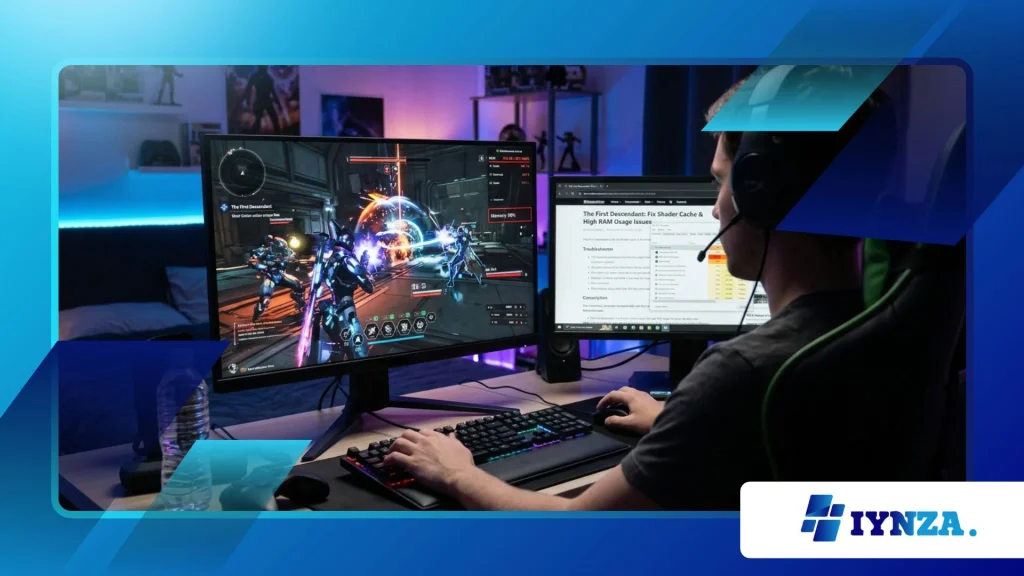
The First Descendant High RAM Usage remains a critical technical hurdle for PC gamers diving into Nexon’s looter-shooter masterpiece, causing severe stuttering and performance degradation across various hardware configurations.
Navigating these memory allocation bottlenecks requires understanding how the Unreal Engine compiles shaders and manages dynamic asset streaming during intensive combat encounters.
Recent optimization patches have addressed several memory leaks, yet players continue experiencing abnormal virtual memory consumption that overwhelms standard gaming rigs.
Addressing these performance anomalies demands targeted configuration adjustments, regular cache clearing procedures, and a comprehensive look at how background processes interact with modern video game engines.
Technical journalists and hardware analysts have closely monitored these performance patterns, noting that proper optimization significantly improves frametime consistency and overall system longevity.
In this quick guide, we will explore:
- Understanding the root causes behind memory bloat and shader compilation errors.
- Step-by-step troubleshooting methods to reclaim your system memory.
- Long-term hardware and software maintenance strategies for uninterrupted gameplay.
What Causes The First Descendant High RAM Usage?
Why do shader caches bloat system memory?
Shader compilation processes store pre-compiled graphical data on local storage drives to accelerate loading times during active gameplay sessions.
When these files become fragmented or corrupted due to interrupted updates, the game engine repeatedly attempts to recompile them in real time.
This continuous compilation loop consumes massive amounts of volatile memory, leading directly to The First Descendant High RAM Usage symptoms across modern systems.
Developers often implement aggressive asset caching mechanisms to ensure smooth texture delivery during fast-paced cooperative missions.
Unfortunately, these caching routines occasionally fail to purge obsolete data from the RAM pool before new assets load into the pipeline.
Consequently, prolonged gaming sessions result in severe memory accumulation that forces the operating system to utilize page files excessively.
How does Unreal Engine handle texture streaming?
Unreal Engine relies heavily on dynamic texture streaming to render complex environments without causing abrupt stuttering or loading screens.
This subsystem constantly evaluates player positioning and visual distance to determine which assets require immediate loading into high-speed memory modules.
When asset pools overlap improperly, the engine allocates excessive buffer space to prevent missing textures during intense combat spectacles.
This behavior becomes particularly problematic on systems equipped with limited video RAM, as the game automatically offloads overflow textures into standard system RAM.
As a result, memory utilization climbs steadily until system stability is compromised, triggering severe framerate drops and unexpected application crashes.
Optimizing texture pool sizes via configuration files often mitigates this specific architectural drawback.
++ Blurry Graphics in Modern Warfare 4: Fix Issues Fast on PC
What hardware factors trigger memory leaks?
Hardware configurations featuring mismatched memory frequencies or unstable XMP profiles frequently exacerbate underlying software optimization flaws within modern video games.
When memory controllers struggle to maintain synchronization under heavy load, data corruption occurs within active cache sectors, prompting the operating system to allocate redundant memory buffers.
Furthermore, outdated motherboard BIOS versions can mismanage voltage supplies to memory DIMMs during prolonged processing tasks.
Independent hardware benchmarks published by tech analysts demonstrate that systems running dual-channel memory configurations with tight timings handle dynamic asset allocation significantly better.
Upgrading physical memory capacity from sixteen to thirty-two gigabytes provides an essential safety buffer against unexpected memory spikes during high-intensity missions.
Maintaining clean hardware drivers ensures that hardware-level caching instructions execute without interference or delay.
How to Fix The First Descendant High RAM Usage?
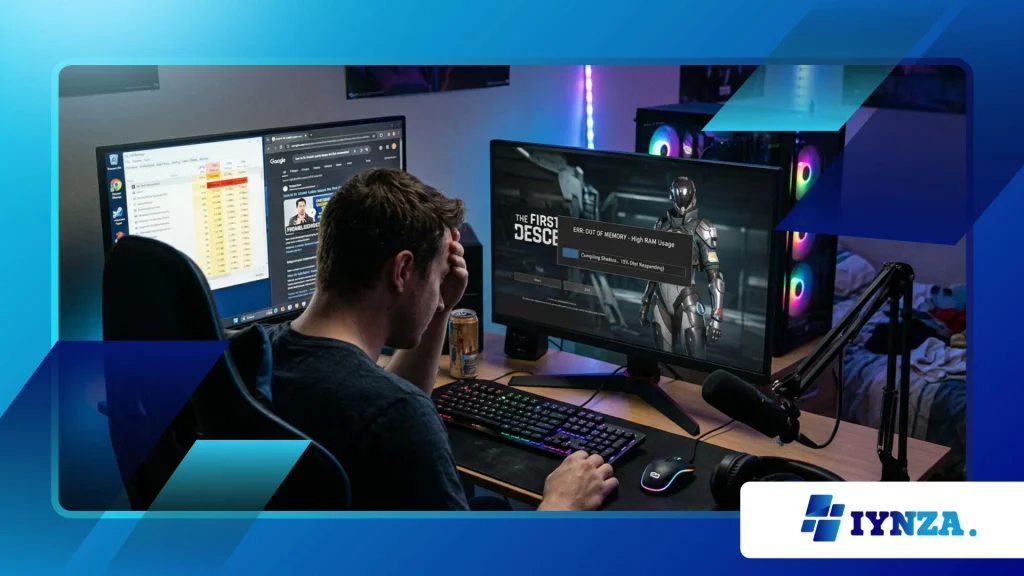
How can players clear corrupted shader files?
Clearing corrupted shader cache directories forces the graphics driver and game engine to rebuild clean asset files upon the next application launch.
Players should navigate to the local AppData directory, locate the specific engine shader cache folders, and safely delete obsolete compilation files.
This straightforward maintenance routine effectively resolves persistent memory accumulation caused by leftover installation data from previous patches.
Performing this cache reset after every major game update prevents legacy compilation scripts from conflicting with newly introduced optimization parameters.
Restarting the computer immediately following the cache clearance ensures that all operating system file locks release completely before launching the title again.
Many community-driven troubleshooting guides highlight this specific procedure as an essential first response to performance anomalies.
++ Steam Controller Not Working? Fix Input and Mapping Conflicts
Which graphic settings reduce memory footprint?
Adjusting specific graphical options within the in-game menu dramatically reduces the overall demand placed on system memory resources during active combat.
Lowering global texture quality from cinematic to high or medium decreases the size of asset buffers loaded directly into volatile memory.
Additionally, disabling ambient occlusion and reducing shadow resolution alleviates processing pressure on both the central and graphics processing units.
Post-processing effects such as motion blur and screen-space reflections consume substantial memory bandwidth without offering significant visual enhancements during fast-paced encounters.
Disabling these demanding features stabilizes frame pacing and prevents sudden memory spikes during chaotic multi-player skirmishes.
Fine-tuning these visual settings strikes an ideal balance between graphical fidelity and reliable system performance.
Also read: G-Sync vs FreeSync Setup: Which One Improves Performance
Why should virtual memory allocation be adjusted?
Configuring custom paging file sizes within the Windows operating system provides a stable safety net when physical RAM reaches maximum capacity thresholds.
Letting the operating system manage page files automatically often leads to sluggish drive performance and stuttering during intensive asset streaming sequences.
Setting a fixed minimum and maximum size for the virtual memory allocation on a fast solid-state drive improves paging efficiency.
This manual adjustment ensures that overflow data handles smoothly without causing catastrophic freezing or abrupt application termination during extended gaming sessions.
Industry experts recommend establishing a paging file size equal to one and a half times the total physical RAM installed in the system.
Proper virtual memory tuning remains a cornerstone of advanced PC optimization methodology.
What Are the Long-term Solutions for Performance Stability?
How do background applications impact game stability?
Running resource-intensive web browsers, recording software, and communication applications simultaneously creates immense competition for available system memory resources.
These background programs consume valuable RAM cycles and disrupt the continuous execution threads required by modern game engines for smooth asset streaming.
Closing unnecessary tray applications before launching demanding titles frees up vital system bandwidth.
Monitoring background resource consumption via task manager diagnostics helps identify rogue applications responsible for draining system memory behind the scenes.
Establishing a clean boot routine or utilizing dedicated gaming modes minimizes interference from non-essential background services.
Prioritizing system resources exclusively for active gaming sessions guarantees optimal software responsiveness.
Why is keeping GPU drivers updated crucial?
Graphics card manufacturers regularly release optimized driver packages designed to resolve known memory leaks, improve shader compilation efficiency, and enhance overall engine stability.
Running outdated driver software leaves your system vulnerable to unpatched memory management bugs that directly contribute to The First Descendant High RAM Usage phenomena.
Performing clean driver installations using specialized utility software removes legacy configuration files that might conflict with new updates.
Keeping display adapters fully optimized ensures seamless communication between the operating system, graphics hardware, and game software architecture.
Major hardware vendors frequently collaborate with game developers to release day-one performance patches targeting specific memory bottlenecks.
Regularly checking for official driver updates safeguards your gaming rig against preventable performance degradation.
When should system hardware upgrades be considered?
Evaluating physical hardware limitations becomes necessary when software optimization tweaks fail to deliver satisfactory performance stability during modern gaming sessions.
If system memory monitors consistently display utilization rates exceeding ninety percent during standard gameplay, upgrading physical capacity is strongly advised.
Transitioning to faster memory modules with higher bandwidth capabilities eliminates performance bottlenecks inherent in older hardware generations.
Investing in high-speed solid-state storage solutions further accelerates asset streaming speeds, reducing the burden placed on temporary memory buffers.
Consulting professional hardware technicians ensures that any component upgrades align harmoniously with existing motherboard and power supply specifications.
Upgrading foundational hardware components guarantees long-term resilience against increasingly demanding video game releases.
| Optimization Strategy | Average Performance Impact | Implementation Complexity |
| Clear Shader Cache | High | Easy |
| Adjust Texture Settings | Moderate | Easy |
| Configure Virtual Memory | High | Moderate |
| Update GPU Drivers | Moderate | Easy |
| Upgrade Physical RAM | Maximum | Advanced |
Sustaining Peak Gaming Performance
Securing a stable, stutter-free gaming experience requires continuous vigilance, proactive maintenance routines, and a thorough understanding of modern computer architecture.
Addressing memory management challenges ensures that The First Descendant High RAM Usage issues no longer disrupt your immersion in high-stakes cooperative missions.
Implementing the diagnostic steps and optimization techniques outlined in this guide empowers players to reclaim lost framerates and maximize hardware longevity.
Share your personal performance optimization experiences in the comments below to help fellow players conquer technical hurdles.
Frequently Asked Questions
What causes high memory consumption while playing modern video game titles on PC?
High memory consumption typically stems from corrupted shader cache files, unoptimized texture streaming budgets, background application interference, and outdated graphics driver software.
How frequently should players clear their local shader cache directories?
Players should clear their local shader compilation caches after every major game patch, driver update, or whenever persistent stuttering and memory leaks occur.
Can adjusting virtual memory paging files completely eliminate game crashes?
While custom paging file configurations provide a reliable safety net for overflowing memory pools, combining virtual memory adjustments with graphic settings optimization yields the best stability results.
Does upgrading physical RAM resolve all performance bottlenecks in cooperative shooters?
Upgrading physical memory significantly increases asset headroom and prevents out-of-memory errors, though CPU throttling and slow storage drives can still impact overall framerate consistency.
Where can players find official updates regarding ongoing game optimization patches?
Official patch notes, developer announcements, and community troubleshooting forums hosted by Nexon provide the most accurate and up-to-date information regarding known performance fixes.
